


Clearing the cache on your iPhone can be a useful troubleshooting step when applications behave erratically or when you need to free up a small amount of storage space. The cache is essentially a temporary storage area where your iPhone and its applications keep frequently accessed data to speed up operations. Instead of downloading information from scratch every time, your device retrieves it from the cache, leading to faster loading times for websites and apps. While the cache typically doesn’t consume a significant amount of storage, and its presence aids in efficiency, there are specific scenarios where clearing it becomes beneficial.
Understanding iPhone Cache
Think of your iPhone’s cache like a shortcut folder for data. When you visit a website or use an app, certain elements—such as images, scripts, or settings—are stored locally. The next time you access that same content, your iPhone pulls these elements from the cache, bypassing the need to re-download them. This process significantly enhances performance and reduces data usage. However, over time, these cached files can accumulate, sometimes leading to minor glitches or consuming more space than anticipated. It’s important to note that clearing the cache is not a permanent solution for storage issues, as your iPhone will begin rebuilding its cache immediately after it’s cleared.
Clearing Cache in iPhone Browsers
The most common place users interact with cache is through web browsers. For Safari, the default browser on iOS, clearing the cache is integrated with clearing browsing history and website data.
Safari Cache Clearing
- Open the Settings app on your iPhone.
- Scroll down and tap on Safari.
- Under the “Privacy & Security” section, tap Clear History and Website Data.
This action will remove your browsing history, cookies, and cache from Safari. Be aware that this is an all-or-nothing approach for Safari’s web data. You will be logged out of websites, and pages may load slightly slower upon your next visit as they are re-downloaded. If you use multiple Safari profiles, this setting will affect all of them.
Other Browser Cache Clearing (e.g., Chrome)
Many third-party browsers offer more granular control over cache clearing. For Google Chrome, the process is slightly different:
- Open the Chrome app.
- Tap the three-dot menu icon (usually in the bottom-right or top-right corner).
- Select Settings.
- Tap on Privacy and Security.
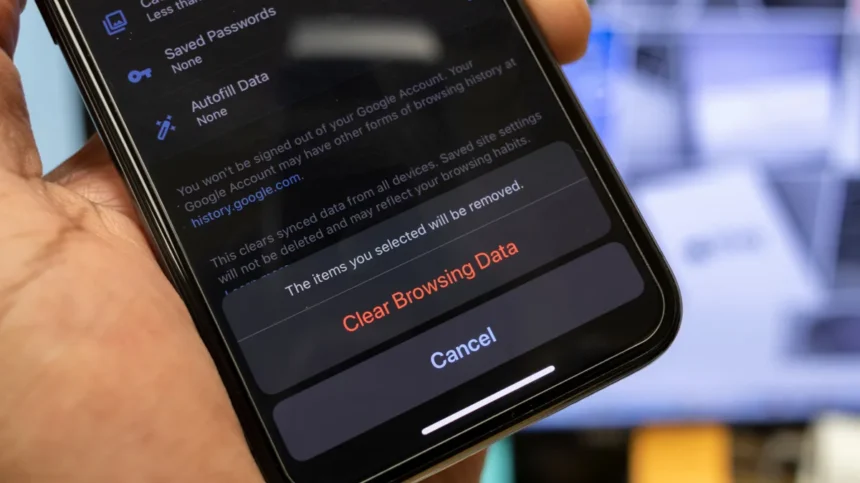
- Choose Clear Browsing Data.
- Here, you can select a Time Range and then specifically check Cached Images and Files. You can uncheck other items like cookies and history if you wish to keep them.
- Tap Clear Browsing Data to confirm.
Some browsers allow you to customize their interface, enabling you to move the “Clear Browsing Data” option to a more accessible location within the main menu for quicker access in the future.
Clearing the System Cache on iPhone
Unlike some other operating systems, iOS does not offer a direct, user-facing option to clear the entire system cache. The primary method to refresh temporary system files is by restarting your iPhone. While not a daily task, periodically restarting your device can help clear out temporary data and resolve minor software hiccups.
How to Restart Your iPhone
- For iPhones with Face ID: Press and hold the side button and either volume button simultaneously until the power off slider appears. Drag the slider to turn off your iPhone. After it powers down completely, press and hold the side button again until you see the Apple logo.
- For iPhones with a Home button: Press and hold the top or side button until the power off slider appears. Drag the slider to turn off your iPhone. Press and hold the top or side button again until you see the Apple logo.
Alternatively, you can navigate to Settings > General > Shut Down and follow the on-screen instructions.
Clearing App-Specific Caches
Many applications provide built-in options to clear their own caches, offering a targeted way to manage data without affecting other parts of your system.
Apps with Direct Cache Clearing Options
Some popular apps allow you to clear their cache directly within their settings:
- Spotify: Navigate to your profile icon > Settings and privacy > Data-saving and offline. Scroll down to find the option to “Clear cache.” This will remove cached audio files without deleting your downloaded music.
- Telegram: Go to Settings > Data and Storage > Storage Usage. Telegram offers extensive controls, allowing you to set cache limits, define auto-clear periods for different chat types, and view storage breakdown by file type.
It is advisable to explore the settings menu of your frequently used apps to see if similar cache management options are available.
Workaround for Apps Without Direct Options (Offloading)
For applications that do not provide an in-app cache clearing feature (like Instagram, for example), the closest alternative is to “offload” the app. Offloading removes the app’s installed data and code but preserves its documents and user data. This effectively clears the app’s cache and temporary files.
- Go to Settings > General > iPhone Storage.
- Select the app you wish to offload.
- Tap Offload App.
After offloading, the app icon will remain on your Home Screen, but it will have a small cloud icon next to it. You can tap this icon to reinstall the app quickly, which will re-download its necessary data, including a fresh cache. For a more thorough reset, you can choose to uninstall the app entirely and then reinstall it from the App Store. This process requires you to sign back in and reconfigure any custom settings.
Strategic Cache Management
Clearing your iPhone’s cache should be viewed as a targeted solution for specific problems, rather than a routine maintenance task. Regularly clearing the cache can be counterproductive, as it forces your device to re-download and re-cache data, potentially slowing down performance temporarily. The system is designed to manage cache efficiently on its own.
When to Clear Cache
- App Malfunctions: If an app is crashing, freezing, or behaving unexpectedly, clearing its cache (if possible) or restarting your iPhone can often resolve the issue.
- Storage Concerns (Temporary): While cache files are usually small, in rare cases, they can grow significantly. Clearing them can provide a minor, short-term storage boost. However, for persistent storage issues, focus on deleting unused apps, large media files, or offloading data.
Distinguishing Cache from Downloads
It’s crucial to differentiate between cache files and actual downloads. Files you’ve intentionally downloaded—such as music, videos, podcasts, or documents—occupy storage space and are not typically cleared by cache-clearing functions. If you are low on storage, investigate your downloads folder and media-heavy apps (like streaming services or podcast apps) before focusing solely on the cache. For instance, videos downloaded for offline viewing via YouTube Premium or music downloaded through Spotify Premium are distinct from cached data and will require manual deletion if storage is a concern.
Conclusion
Managing your iPhone’s cache involves understanding its purpose and employing the right methods for different scenarios. For browsers, clearing history and website data is the standard approach. For system-wide temporary files, a simple restart is effective. Many apps offer direct cache management, while others may require offloading. By treating cache clearing as a troubleshooting tool rather than a constant chore, you can effectively maintain your iPhone’s performance and manage its storage more efficiently.