


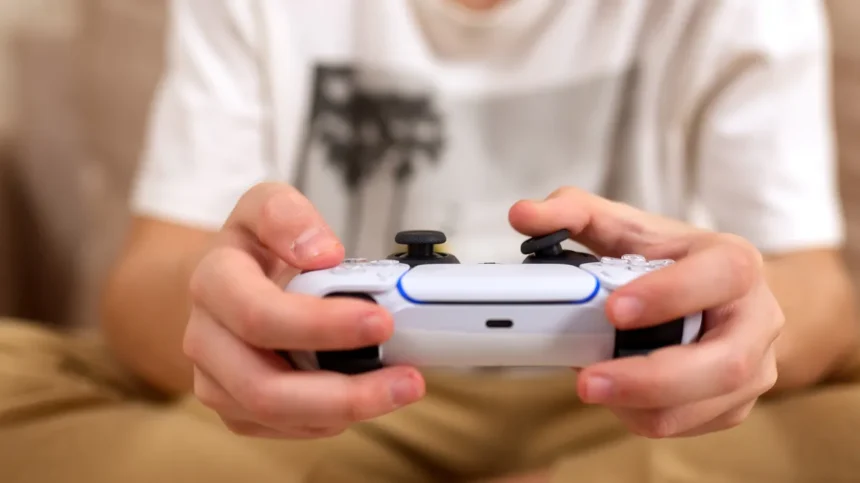
Stick drift, a frustrating issue where analog sticks register movement without user input, can significantly impair gameplay on modern consoles like the PlayStation 5 and Xbox Series X/S. This phenomenon, characterized by an unprompted camera pan or character movement, stems from a variety of causes, primarily wear and tear on internal components. Fortunately, several troubleshooting steps can help resolve or mitigate stick drift on both PS5 DualSense and Xbox Wireless Controllers, ranging from simple cleaning to firmware updates and, in some cases, hardware replacement.
Understanding Stick Drift
Stick drift occurs when the sensors within a controller’s analog stick mechanism malfunction. These sensors, typically potentiometers, translate the physical position of the stick into digital signals that control in-game actions. Over time, dust, debris, sweat, and general wear can accumulate or degrade these components, leading to inaccurate readings. Even new controllers can sometimes exhibit this defect due to manufacturing calibration issues.
While neither the PS5 DualSense nor the Xbox Wireless Controller utilizes Hall Effect thumbsticks, which are known for their durability and resistance to drift, they rely on traditional analog stick mechanisms. This makes them susceptible to the common causes of stick drift.
Troubleshooting Stick Drift on PS5 DualSense Controllers
When faced with stick drift on a PS5 DualSense controller, a systematic approach to troubleshooting is recommended. Start with the simplest solutions before moving to more involved ones.
1. Thorough Cleaning
Dust, grime, and moisture from hands can infiltrate the analog stick modules, interfering with their sensors. A good cleaning can often dislodge this buildup.
- Compressed Air: Use a can of compressed air to blow short, intermittent bursts around the base of the analog stick. This can help remove loose dust and debris. Ensure the controller is powered off before cleaning.
- Isopropyl Alcohol and Cotton Swabs: Lightly dampen a cotton swab (cue tip) with isopropyl alcohol (rubbing alcohol). Gently clean around the base of the analog stick, ensuring not to oversaturate the area. Allow it to dry completely before powering the controller back on.
2. Controller Reset
A hard reset can sometimes resolve software glitches that might be contributing to perceived stick drift.
- Turn off your DualSense controller.
- Locate the small reset pinhole on the back of the controller.
- Using a straightened paperclip or a similar thin object, gently press and hold the button inside the pinhole for at least five seconds.
- Reconnect the controller to your PS5 using a USB cable to re-pair it.
3. Firmware Updates
Outdated controller firmware can sometimes lead to input issues. Keeping it updated ensures optimal performance.
- Navigate to your PS5’s Settings menu.
- Select ‘Accessories’.
- Go to ‘Controller (General)’.
- Choose ‘DualSense Wireless Controller Device Software’ and follow the prompts to install any available updates.
4. DualSense Edge Specific Solution: Replaceable Stick Modules
For owners of the premium DualSense Edge controller, a hardware solution is available. This controller features swappable analog stick modules.
- Purchase a replacement DualSense Edge Stick Module (sold separately for approximately $30).
- On the back of the controller, slide the release latch to the left.
- Carefully pull off the plate surrounding the analog sticks.
- Each stick module has a metallic release latch. Pull this latch upwards.
- Slide the faulty stick module out.
- Insert the new stick module and lower the release latch to secure it.
- Reattach the surrounding plate.
Troubleshooting Stick Drift on Xbox Wireless Controllers
The methods for addressing stick drift on an Xbox Wireless Controller are largely similar to those for the PS5 DualSense.
1. Cleaning Procedures
The same cleaning techniques using compressed air or isopropyl alcohol and cotton swabs can be applied to Xbox controllers to remove debris affecting the analog stick sensors.
2. Firmware Updates
Ensuring your Xbox controller has the latest firmware is crucial for performance and bug fixes.
- Press the Xbox button on your controller to open the guide.
- Navigate to ‘Profile & system’ > ‘Settings’.
- Select ‘Devices & connections’ > ‘Accessories’.
- Choose your controller. If an update is available, select ‘Update’ and follow the instructions.
3. Using the Xbox Accessories App
The Xbox Accessories app provides advanced calibration tools that can help manage stick drift.
- Download and install the ‘Xbox Accessories’ app from the Xbox Store if you haven’t already.
- Launch the app and select your controller.
- Explore the calibration options. You can often adjust the ‘dead zone’ settings for the analog sticks. Increasing the dead zone slightly can prevent the controller from registering minor, unintended movements caused by drift.
- The app also allows for controller testing to diagnose input issues.
When to Seek Professional Help or Replacement
If cleaning, resetting, firmware updates, and calibration adjustments do not resolve the stick drift issue, the problem may be more severe hardware degradation. In such cases, especially if the controller is still under warranty, it is advisable to contact the manufacturer.
- Warranty Claims: Both Sony and Microsoft offer warranty services for their controllers. If your controller is within its warranty period, reach out to customer support to inquire about repair or replacement options. Opening the controller yourself can void the warranty.
- Out-of-Warranty Repairs: For controllers no longer under warranty, you might consider third-party repair services or evaluate the cost of purchasing a new controller against the repair cost.
By systematically working through these troubleshooting steps, players can often restore their PS5 or Xbox controllers to optimal working condition and continue enjoying their gaming experiences without the frustration of stick drift.




.png "20 Greatest Tech Books to Present (2024): Biographies, Startup Histories, Exposés")